How to use the featured section on your LinkedIn profile
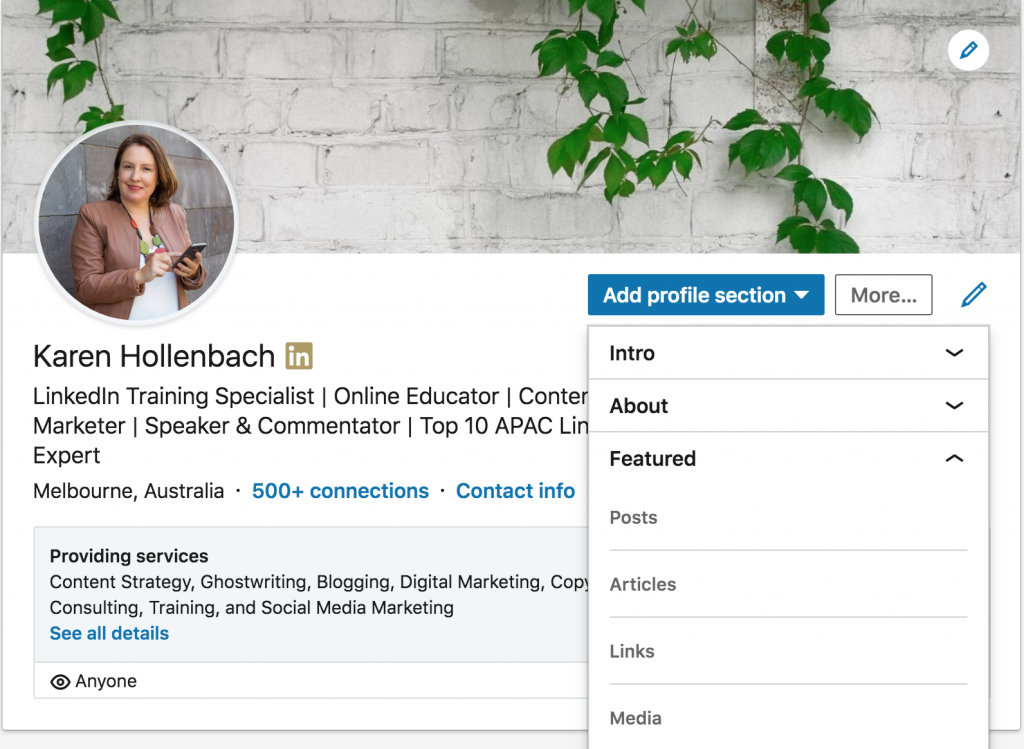
Whether you are a business owner, digital marketer or job seeker, I recommend you spend some time this week considering how you can use the LinkedIn Profile featured section to showcase your professional brand on LinkedIn.
The Purpose of the Featured Section on Your LinkedIn Profile
The Featured section is where you can showcase work samples that youโre most proud of. For example, you can feature posts that youโve authored or re-shared, articles youโve published on LinkedIn, and even external media like images, documents and links.

If youโve previously published a LinkedIn article, or added a link to About section of your profile, this content has been moved to the Featured section. Your posts can be added to this section, and your LinkedIn articles need to be included here or they can not be viewed on your profile like they used to be.
Think about the posts, external links, documents and images you would like to showcase prominently in this section. Once you do make these updates, diarise a reminder to check your Featured section to make sure itโs current and relevant. Every 3 months should be regularly enough.
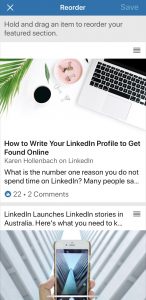
If you are viewing your LinkedIn Profile from your desktop, scroll to the featured section on your LinkedIn Profile, click on the plus icon and choose whether you would like to feature a recent post, a recent LinkedIn article, external links or media, including photos, documents and presentations.ย If you are on your mobile device, scroll to the featured section on your LinkedIn Profile and click on the blue pencil.ย By default, newly featured content youโve added will show up first in your Featured section. Please scroll down to learn how to re-order this.
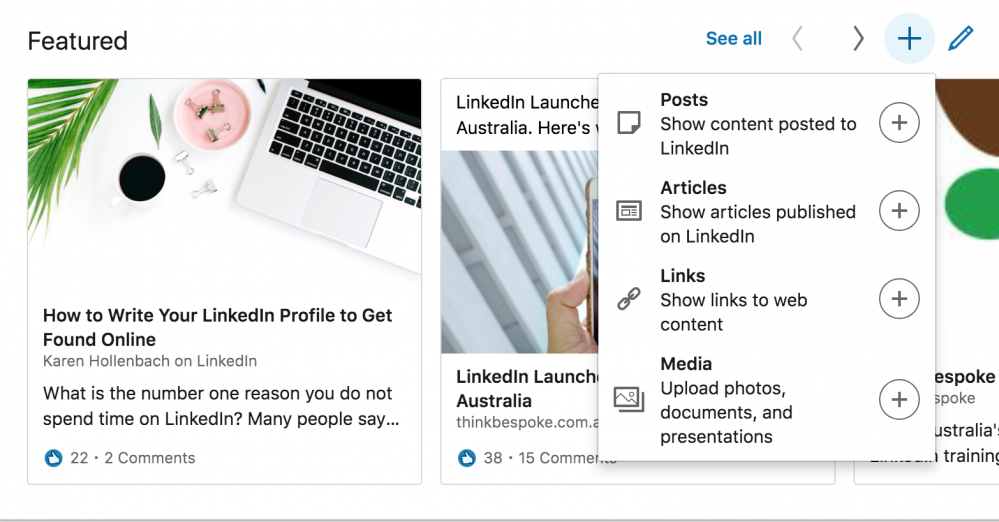
The example above of the Featured section is from my LinkedIn Profile. Iโve featuredย a LinkedIn article about my Profile Essentials Masterclass, a post with a link to a blog article that takes readers to this website and a link to Think Bespokeโs website that showcases our services.
Importantly, the Featured section is different to the Activity feed on your LinkedIn Profile because it allows you to select the content youโre most proud of and curate what other members will see.ย Whereas the activity section highlights all your activity for the past 45 days, ordered by recency. This includes your articles, posts, comments and likes on other LinkedIn posts. Your Activity section is located just below the Featured section on your profile if you choose to enable it, or under your Dashboard.
You can feature any posts youโve authored or re-shared, articles youโve published on LinkedIn, as well as external media, documents and links. LinkedIn encourages you to โshowcase content that youโre proud of and that you feel is representative of your professional identityโ.
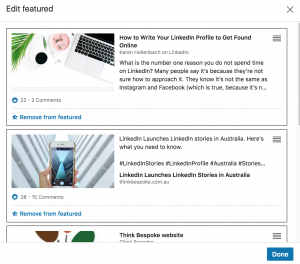
In both the desktop and phone views, look out for the 3 parallel lines (also known as the hamburger), click on and hold these, then move your cursor or finger up or down to change the order of your featured content.


Our clients are loving using the Featured section to profile their content and achievements. If youโre wondering what you should be featuring in this section of your LinkedIn Profile, hereโs some examples to help you make the most of this feature.
Please note โ do not attach your latest resume in PDF, as this should be tailored to every new job opportunity.
Weโve also been asked how much content can be included in your Featured section. Five pieces of content is what we recommend, but you can include as many samples of your work as you want in your Featured section, and you can manage what youโd like to feature by adding and removing content at any time.
If you donโt have any content to feature, your Featured section will be hidden from people who view your profile. Your visibility settings on your profile will influence who can see this section if youโve updated or added content to this section. For example, if you specify in your privacy settings that the visibility of your posts is limited to your connections only, then only your connections will be able to see the content in your Featured section.
Comments